January 7, 2026
How to Copy Handwriting Text From an Image
Upload a photo to copy handwritten text instantly. Learn the fastest workflow plus quick fixes for missing words, wrong letters, and messy handwriting.
By Editorial Team
If you're searching for how to copy handwriting text from an image, you likely already have the photo — a note, an assignment, a form, or a handwritten page — and you want editable text you can paste.
The fastest workflow is simple: upload your image, convert it, then copy and paste the result. If the output looks slightly off, a few quick fixes usually bring accuracy back.
Upload a photo and get editable text in seconds.
TL;DR: Copy handwriting in under a minute
If you only want the fastest workflow:
- Choose a clear image Sharp focus, readable handwriting, and even lighting.
- Upload and convert Upload your photo to convert handwriting into editable text.
- Copy → paste Paste into Google Docs, Word, Notion, email, or anywhere.
If the output looks wrong (missing words, wrong letters, weird line order), jump to quick fixes.
Best image types for copying handwriting
You can copy handwriting from phone photos, scans, and screenshots. The best results come from sharp images with readable strokes and good contrast.
- Phone photo (best for speed) Works great when lighting is even and the page is shot straight-on.
- Scan (best for consistency) Scans reduce blur and keep the page flat — ideal for longer notes.
- Screenshot (best for clean digital handwriting) Best when handwriting is high-contrast and not heavily compressed.
Supported formats: JPG/JPEG, WebP, PNG, and HEIC. Free users can upload images up to 10 MB per image.
The fastest copy → paste workflow
This is the fastest way to turn a handwriting photo into text you can paste — no manual selecting, no shortcuts.
- Upload your image Choose a handwriting photo, scan, or screenshot and upload it.
- Quick review Skim the output for names, numbers, and obvious letter swaps.
- Click Copy Use the Copy button to instantly copy the recognized text to your clipboard.
- Paste anywhere Paste into Google Docs, Word, Notion, email, or any editor.
If you're converting a full page, you can upload it as-is first. If accuracy isn't where you need it, use the fixes below and retry.
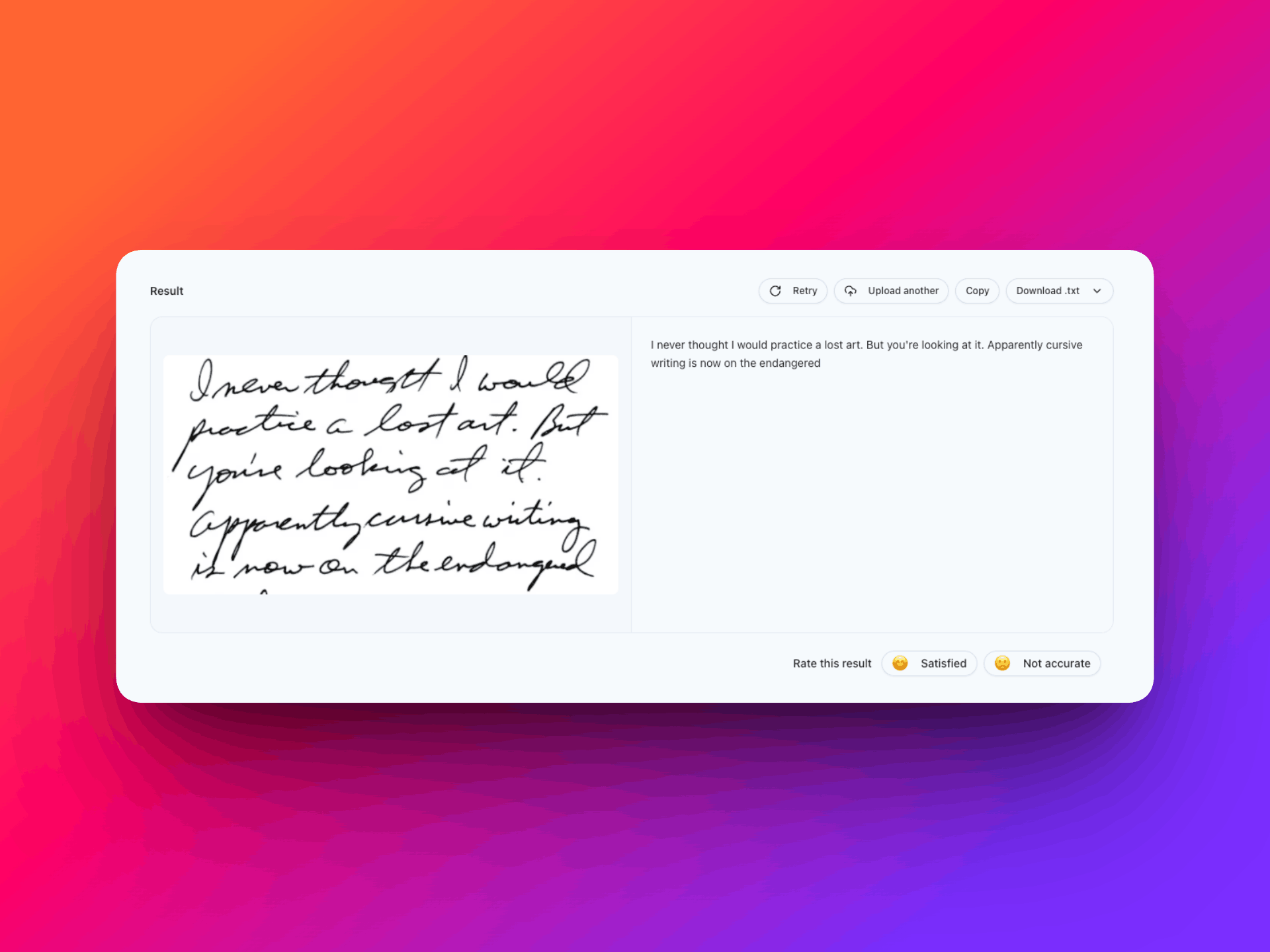
Upload your handwriting image and copy the output.
Quick accuracy check
Before you paste the result into a document, do a 10-second scan. This catches the most common mistakes early.
- Check the easy "anchor words" Words like the / and / to / for are easy indicators. If those are right, the model likely understood your handwriting style.
- Verify names and numbers Names, dates, and numeric strings are fragile. If one is wrong, it's worth a quick retry.
- Scan for common letter swaps The most common swaps are r/v, m/n, i/e, t/l. One wrong letter can break the sentence.
If the output looks wrong: quick fixes
Most issues are fixable with a small input change. Try these first:
- Missing words or skipped lines Improve contrast (darker ink, lighter paper) and retry. If it's a long page, retry the section that's missing.
- Wrong letters Use a sharper image or reshoot closer. Blurry strokes make letters flip (i/e, r/v).
- Random characters or "noise" Avoid shadows and glare. Shoot under even light so paper texture doesn't look like ink.
- Only one word is wrong Retry with that line more clearly visible (less background, stronger contrast). Context often fixes the word.
Where to paste the copied text
Once you have editable text, you can paste it almost anywhere:
- Google Docs / Word Paste, then quickly correct names and numbers if needed.
- Notion / Obsidian / Notes apps Great for turning handwritten notes into searchable text.
- Email / messages Useful when you need to share handwritten content quickly.
- Spreadsheets (Excel / Google Sheets) Paste lists or data, then clean up formatting if needed.
If you're converting tables or forms into a spreadsheet, you may also want to try image to Excel.
Upload an image and paste the editable output anywhere.
FAQ
Can I copy handwriting text from a phone photo?
Yes. Phone photos work well if the image is sharp and well-lit. Upload the image to convert handwriting into editable text, then copy and paste anywhere.
Why does the output miss words when I copy handwriting from an image?
Missing words usually come from low contrast, shadows, or long paragraphs. Improve lighting or contrast and try again. If a specific line is tricky, retry with a clearer view of that area.
What image formats are supported?
Supported formats include JPG/JPEG, WebP, PNG, and HEIC. Free users can upload images up to 10 MB per image.
How do I improve accuracy for messy handwriting?
Use a sharper image, improve lighting, and increase contrast so strokes are clearer. If one line is wrong, retry that section with less background clutter.
Can I paste the output into Google Docs or Word?
Yes. Once the handwriting is recognized, copy the text and paste it into Google Docs, Word, Notion, email, or any editor.
Do you store uploaded images?
Images are processed securely and temporarily stored only for the duration needed to complete conversion. Processed images are automatically deleted after 24 hours.