January 3, 2026
How to Extract Handwritten Text from an Image
Upload a photo or scan and extract handwritten text in seconds. Step-by-step guide plus tips to improve OCR accuracy for messy notes and cursive.
By Editorial Team
Extracting handwritten text from an image can save you a huge amount of time—whether you're digitizing class notes, turning meeting notes into a document, or preserving old letters and journals. The challenge is that handwriting is harder than printed text: strokes vary from person to person, lines may connect, and phone photos often include blur, shadows, or angled perspective. The good news is that with the right tool, you can convert a photo of handwriting into clean, editable text in under a minute.
This guide walks you through the fastest step-by-step method, the most common issues, and practical tips to improve accuracy—especially when your input is messy or cursive.
Quick Answer (TL;DR)
If you want to extract handwritten text from an image, here's a simple workflow for you:
- Choose a clear photo or scan Flat page, even lighting, and sharp focus.
- Upload to Handwriting to Text Go to handwritingtotext.org and drop the image.
- Process and review Click Process, then review the extracted text.
- Copy or export Save as .txt, .md, .csv, or .xlsx.
Convert your handwritten notes into editable text quickly and accurately.
Why handwriting is harder than printed text
Many image-to-text tools work well on printed documents because fonts have consistent shapes and spacing. Handwriting is different. Here are the most common reasons OCR is more difficult:
- Handwriting styles vary. Everyone writes differently. Some people use sharp angles, others write with rounded letters, and spacing can be inconsistent.
- Letters connect. Cursive handwriting and fast note-taking often connect letters together, making boundaries harder to detect.
- Phone photos add noise. Shadows, motion blur, glare from overhead lights, and angled shots can distort the text.
- Handwriting isn't always linear. Notes may include arrows, diagrams, bullet points, tables and symbols, which makes it harder for OCR to determine the correct reading order and structure.
Understanding these limitations helps you choose the right approach: improve the image quality first, then choose a tool designed for handwriting OCR.
What makes our tool work better for handwritten notes
Handwriting to Text is built specifically for real handwritten content. It's designed to handle the three things that usually break generic OCR: cursive handwriting, reading order, and symbolic notation.
Higher accuracy on cursive handwriting
Cursive handwriting is one of the hardest formats for OCR because letters connect and word boundaries aren’t obvious. This gets even harder when the input comes from a phone photo that's slightly blurry, low-contrast, or taken under uneven lighting.
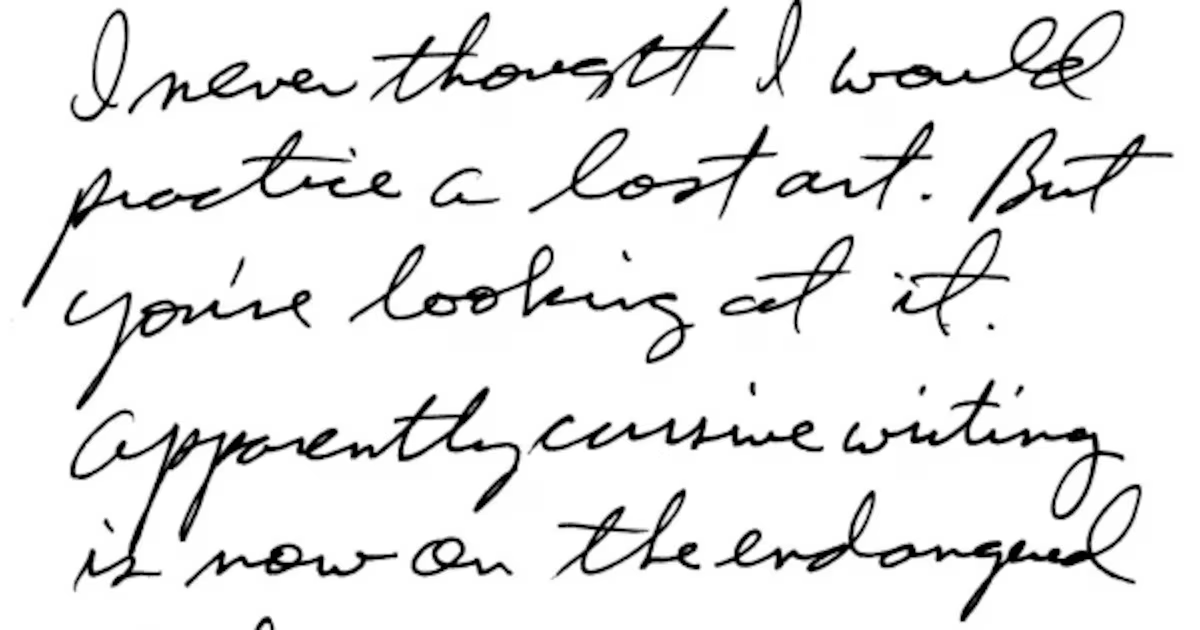
Convert cursive handwriting into readable text.
Context-aware reading order
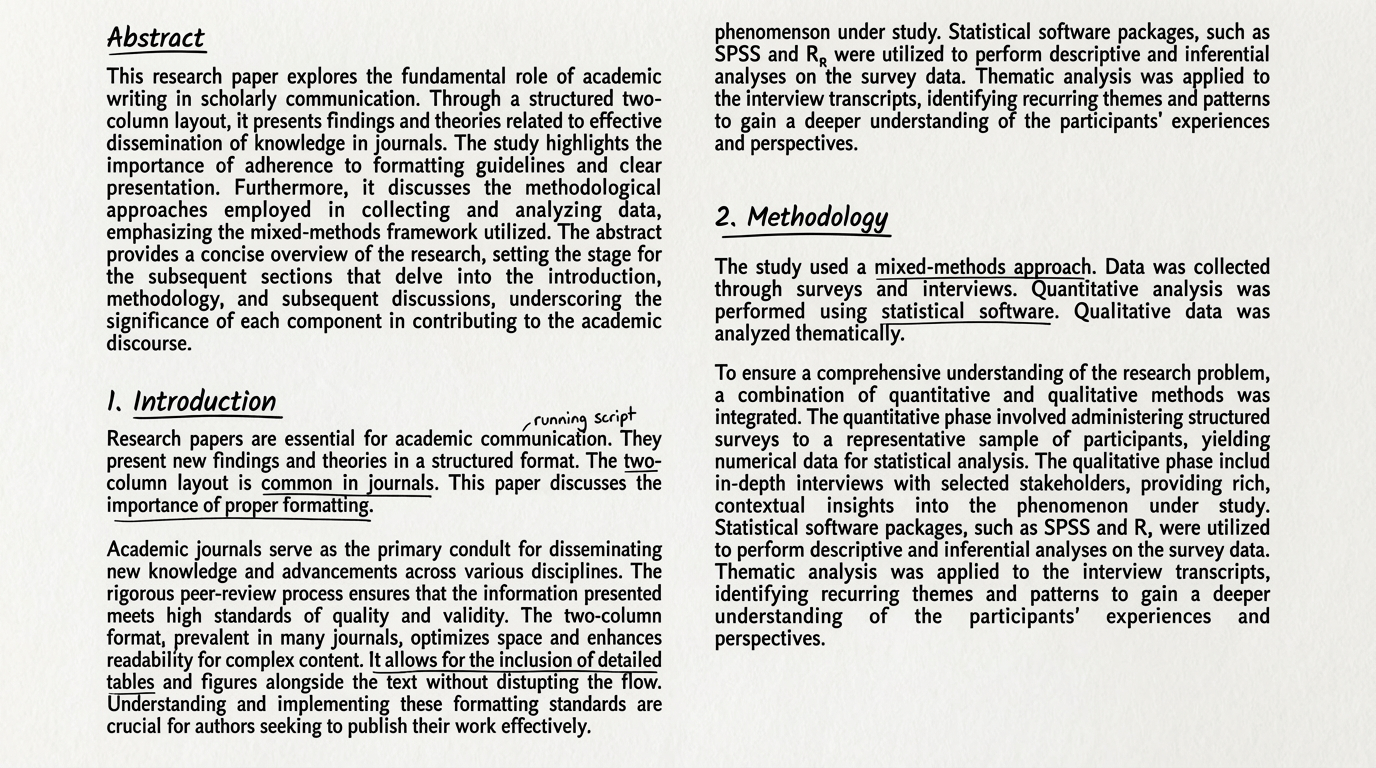
Another common problem with handwriting is that it rarely follows a clean, single-column reading flow. Real notes are often a mix of structure and shortcuts, which makes it harder for OCR to reconstruct what you meant.
- Two-column class notes. Text jumps left-to-right and top-to-bottom in ways OCR can misinterpret.
- Headings and bullet lists. Hierarchy matters, but handwriting does not always keep spacing consistent.
- Margin annotations. Side notes and callouts can be mistaken for the next line of the main text.
- Arrows connecting ideas. Links between fragments are visual, not linear.
- Scattered fragments. People write wherever there is space, especially on busy pages.
Our handwriting to text tool is context-aware, so it can better reconstruct the intended reading order and produce output that reads naturally. This is especially helpful for multi-column notes and structured pages where layout matters.
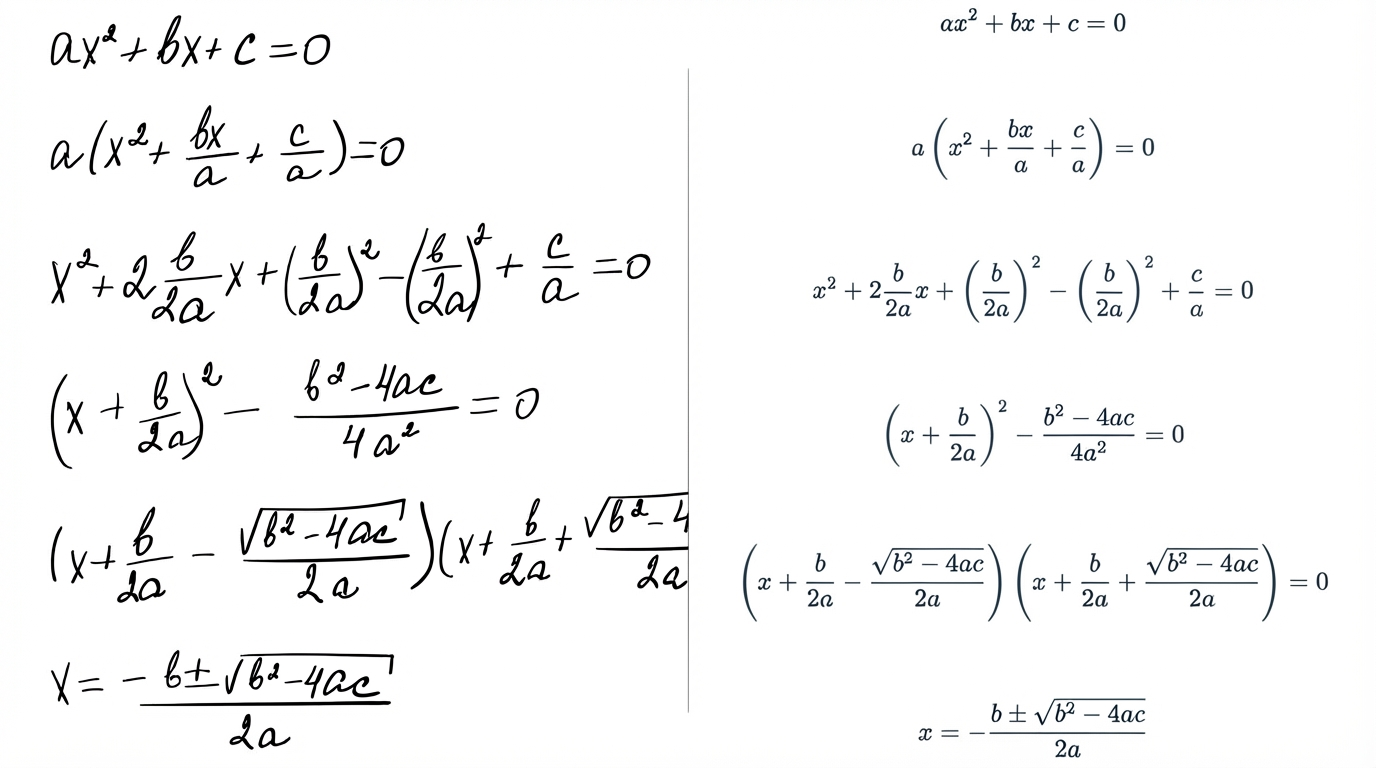
Recognizes math symbols and converts them to LaTeX
If you've ever tried using OCR on math notes, you've probably seen the problem: standard OCR can recognize letters, but it often breaks on symbols. Things like fractions, integrals, square roots, subscripts, and Greek letters are usually misread or ignored. Our tool can recognize common math notation and convert it into LaTeX, so the output can be directly used in: research notes, academic assignments, Markdown documents, technical writing workflows.
Step-by-step: Extract handwritten text with Handwriting to Text
1. Upload your image
Go to handwritingtotext.org and upload a handwriting photo or scan in any supported format: WebP, PNG, JPG/JPEG, or HEIC. The free plan supports files up to 10 MB per image.
2. Click Process and wait
After uploading, click Process. The tool analyzes handwriting, reading order, and symbols, then generates editable output. Processing usually takes only a few seconds depending on image size and handwriting complexity.
3. Review the result
Once processing is done, scan the output for spacing, punctuation, names, or uncommon words. Clear handwriting typically needs only minimal edits.
4. Copy or export to your preferred format
Copy the extracted text directly or export to formats that fit your workflow: .txt, .md, .csv, or .xlsx. This makes it easy to paste into Docs, Notion, or spreadsheets.
5. If the result isn't perfect, click Retry
If the output is not what you expected, click Retry to reprocess the same image. This helps when reading order is off, words are missing, or handwriting is faint. Paid users can retry freely.
Tips to improve accuracy
If your results aren't as clean as you want, don't assume the tool is the problem. In handwriting extraction, the image quality often determines most of the outcome. Use these tips to improve accuracy:
- Use bright, even lighting. Avoid strong shadows. Natural light from a window is ideal.
- Keep the camera steady. Motion blur is a common failure point for handwriting OCR.
- Increase contrast. Faint pencil or light ink often needs a contrast boost.
- Avoid glare. Glossy paper can wash out ink and reduce accuracy.
- Straighten the page. Even slight angles can distort letter shapes.
- Split dense pages. If handwriting is tightly packed, crop into smaller sections.
- Try a second photo. Sometimes a new photo with better light is dramatically more accurate than the first.
Next steps
Ready to try it? Upload your first image and see how quickly your notes turn into editable text.
Convert your first image in under a minute.