February 3, 2026
Handwriting OCR on Water-Damaged Documents: A Comparative Study
We compare handwriting OCR results on a real water-damaged handwritten journal excerpt to show how different systems handle faint, blurred, or partially missing text.
By Editorial Team
Water-damaged documents are some of the toughest for OCR. When the text is handwritten, the challenge increases even more. Handwriting naturally varies in letter shapes, spacing, and stroke thickness. Water damage adds to these inconsistencies.
In this post, we compare handwriting OCR results from a real water-damaged handwritten journal excerpt. Our aim is not to rank tools but to show how different systems handle text that is faint, blurred, or partially missing.
Upload a page and compare results.
Why water-damaged handwriting is hard
Water damage creates specific challenges for OCR systems when it comes to handwritten documents.
Common issues include:
- Ink bleed and diffusion Water causes ink to spread beyond the original strokes, blurring the boundaries between characters and merging letters.
- Low contrast Faded ink and uneven background texture reduce the clarity that OCR needs to tell strokes apart from the paper.
- Stroke loss and fragmentation Thin strokes may disappear, resulting in incomplete letter shapes that look like other characters.
- Unreliable word boundaries Inconsistent spacing makes it difficult to figure out where one word ends and the next begins.
A real-world case
Recently, a customer used our Handwriting to Text tool to process a batch of water-damaged handwritten journal pages.
The excerpt below is from a scanned page of a handwritten personal journal exposed to water. There was no manual cleanup or restoration of any kind before recognition. We're grateful to Jeanne for providing this sample.
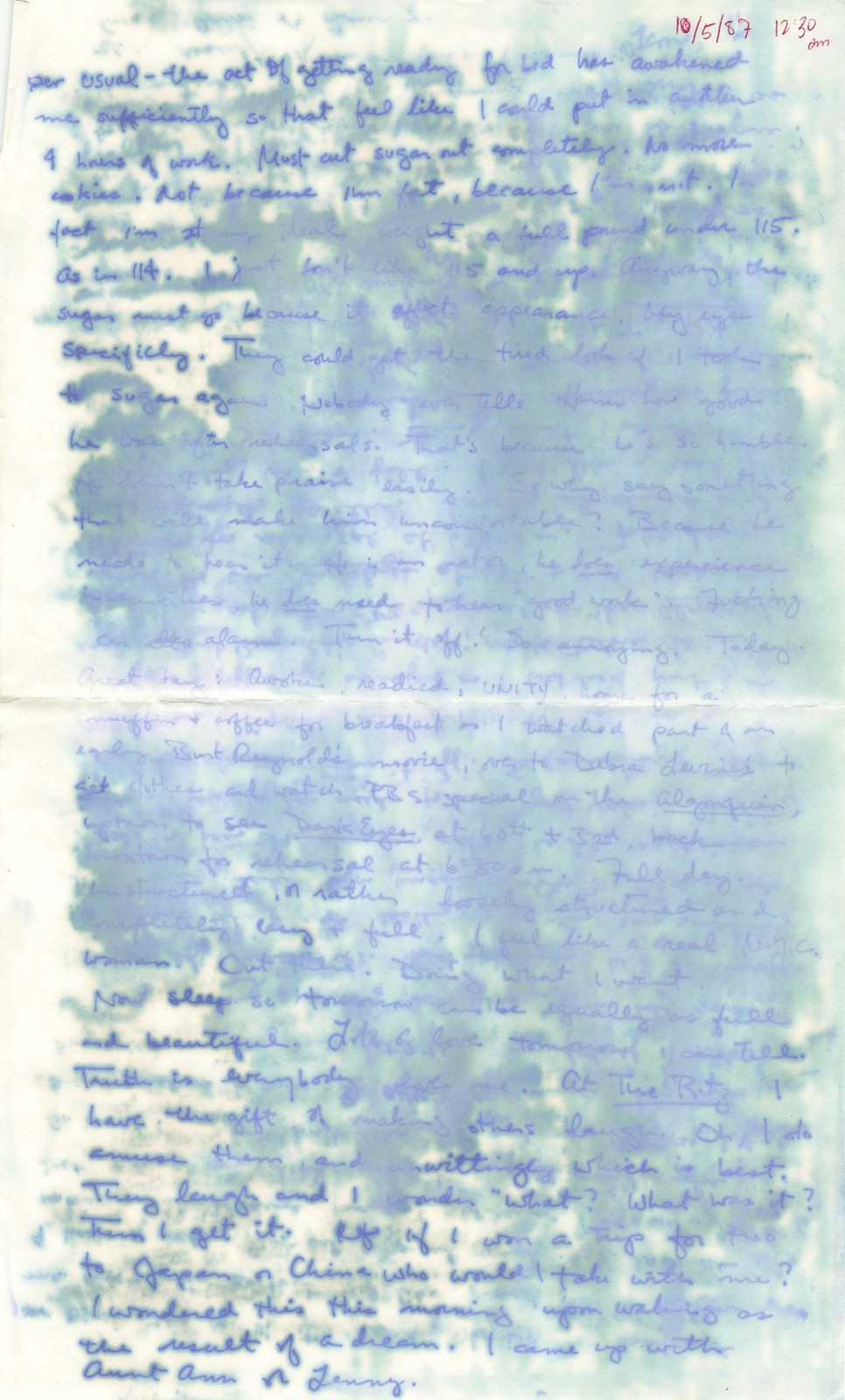
Even with the condition of the source material, a large part of the content was transcribed successfully without any manual edits.
This led us to compare these results with several commonly used handwriting OCR tools, using the same document excerpt.
Side-by-side OCR comparison
We ran the same water-damaged journal excerpt through Handwriting to Text and three commonly used handwriting OCR tools. Each system received the same input, without manual cleanup, restoration, or selective cropping.
The screenshots below show the raw outputs as presented by each product. Differences in interface and layout are preserved, as they reflect the actual user experience.
Handwriting to Text
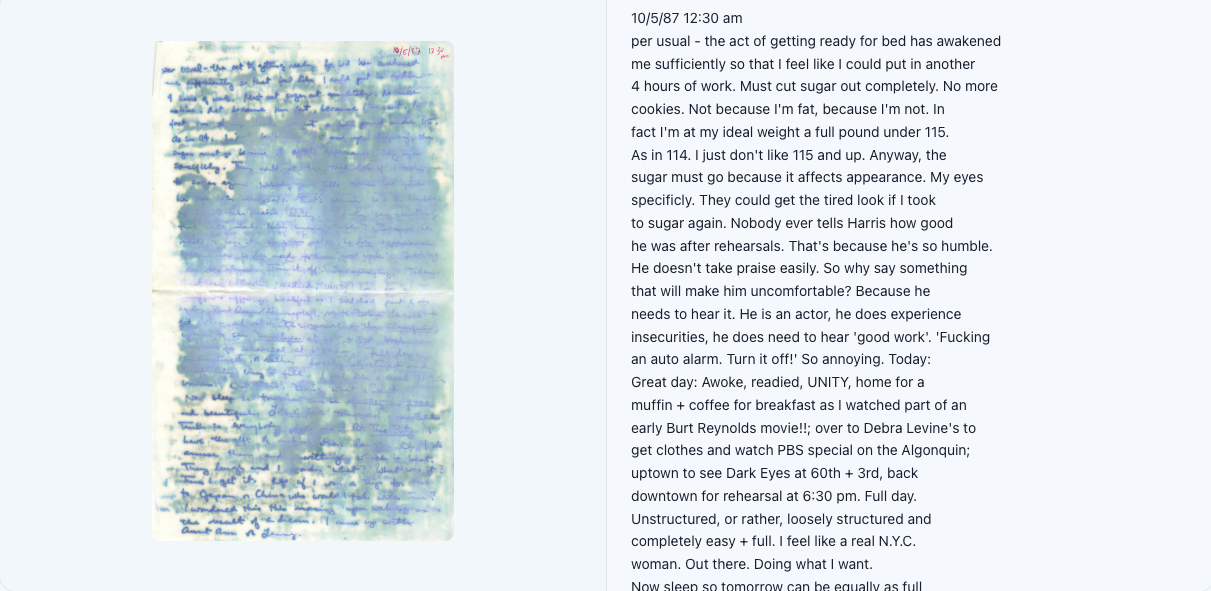
Handwriting to Text captures a large portion of the original journal entry, including full sentences, names, and narrative structure.
Due to current interface constraints, not all recognized content is visible in the screenshot. Even so, the overall continuity and completeness of the transcription are apparent.
Minor formatting artifacts, such as spacing inconsistencies, are present. These affect presentation but do not alter the meaning of the text.
Pen to Print
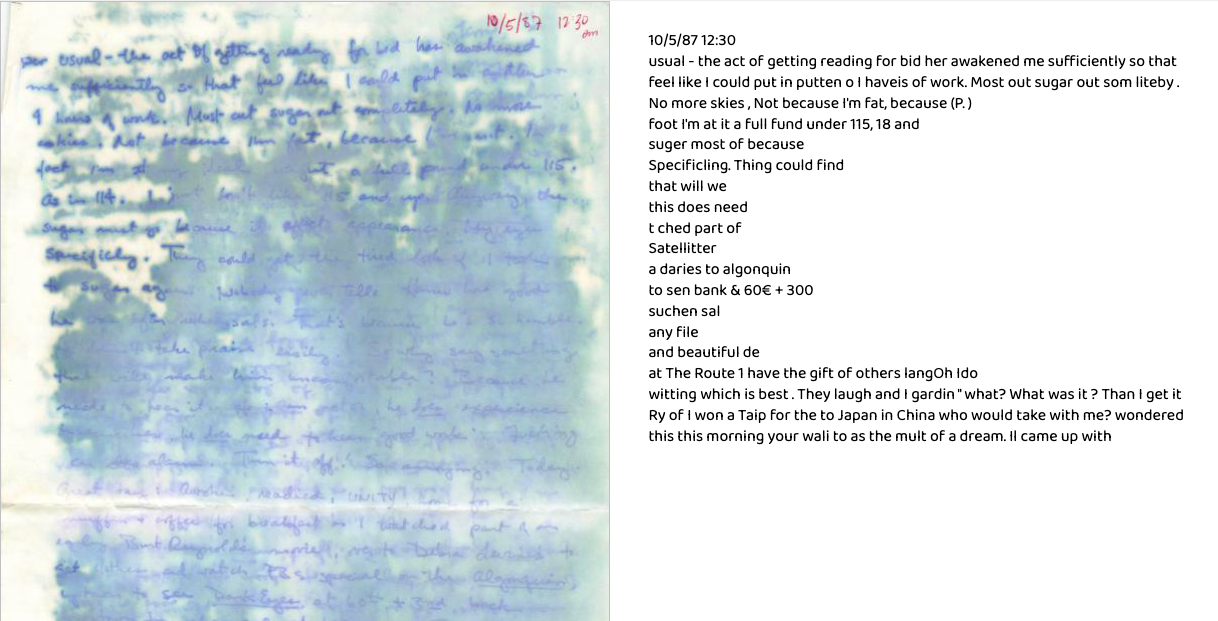
In this example, Pen to Print recognizes only a limited portion of the handwritten content.
Large sections of the journal entry are missing from the output, particularly in areas affected by heavier water damage. As a result, the text lacks continuity and does not reflect the full structure of the original entry.
Transkribus
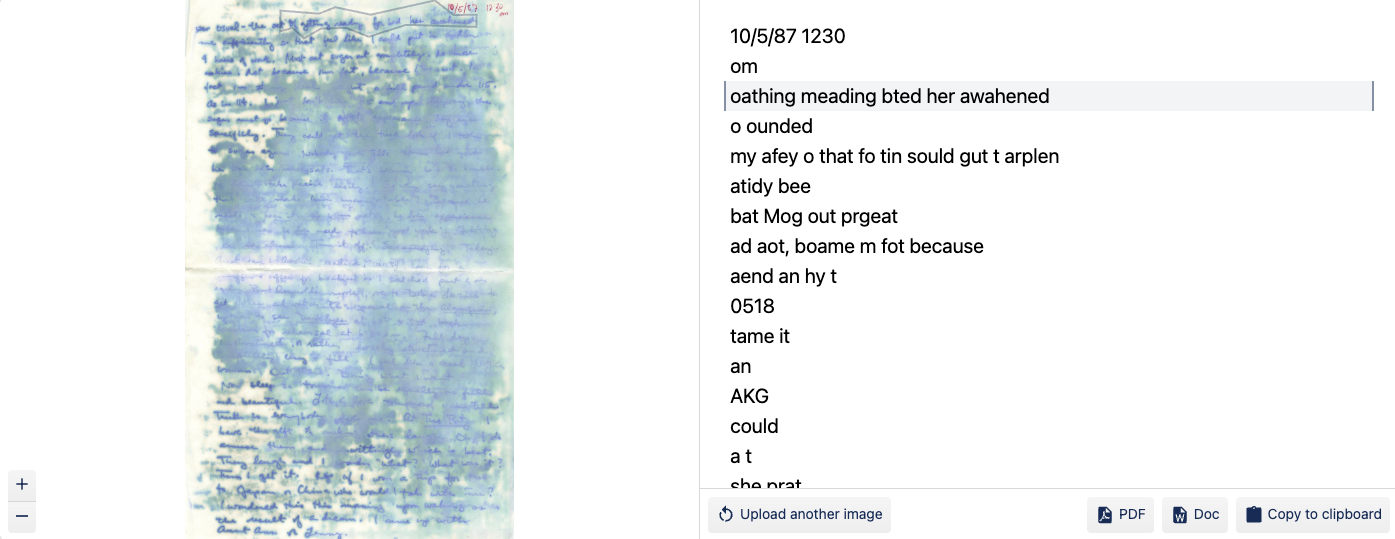
In this case, Transkribus captures even less content from the same water-damaged journal page.
Only short fragments are present in the output, making it difficult to reconstruct the original narrative without referring back to the scanned document.
Card Scanner
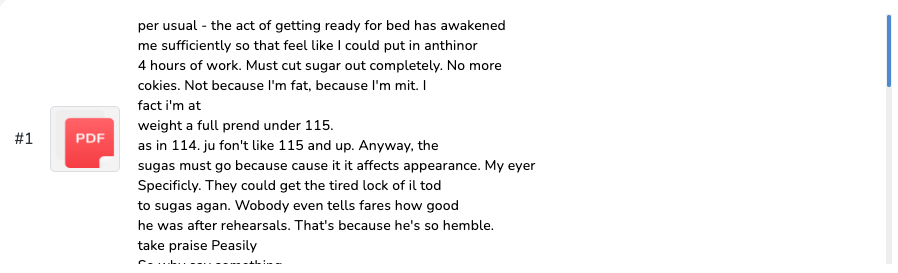
Card Scanner presents a different limitation. Due to interface constraints, only part of the recognized text is visible in the screenshot.
Even within the visible portion, several words are incorrectly recognized, indicating difficulty handling low-contrast, water-damaged handwriting.
Upload one page and see how it performs.
Key observations
From this comparison, we can see several patterns:
- Readability does not equal accuracy A well-written paragraph can still have subtle shifts in meaning, especially regarding names, dates, or specific phrases.
- Spacing and formatting issues are fixable Minor presentation problems are often easier to spot and correct than changes in meaning caused by guessing.
- Water damage increases hallucination risk When the signal is weak, systems that focus on fluency may make confident guesses that alter meaning.
- Batch size matters Trying smaller excerpts or isolating damaged areas often improves stability and makes quality checks simpler.
Our approach: fidelity over polish
For water-damaged handwriting, we prioritize keeping the text as close as possible to what was actually written instead of rewriting it to sound better.
In practice, this means:
- Avoiding guesses Avoiding guesses when handwriting is unclear.
- Keeping wording Keeping original wording whenever we can.
- Accepting small issues Accepting small spacing or formatting issues to lower the risk of changing meaning.
We view handwriting OCR as a transcription task, not an editing one.
Closing thoughts
Water-damaged handwritten documents continue to be a significant challenge for OCR systems.
As this comparison shows, different tools deal with uncertainty in fundamentally different ways. Instead of asking which system produces the smoothest output, it may be more useful to ask which one stays closest to the original writing.
Upload a page and get editable text.
FAQ
Why do OCR tools make errors on water-damaged pages?
Water damage creates ambiguity. Some OCR systems try to smooth unclear areas into fluent text, which can lead to confident guesses that subtly alter meaning.
Should I prioritize readability or accuracy for journals?
For personal journals, accuracy and keeping the original meaning often matter more than a perfectly polished text. Minor spacing issues are usually easier to fix than shifts in meaning.
How can I improve results without using Photoshop?
Try uploading a tighter crop around the unclear area, increase contrast in scanner settings if you can, and retry smaller sections instead of larger groups.
Do I need to crop the page, or can I upload the whole PDF?
You can upload the entire page at first. If the unclear area is still hard to see, try with a tighter crop focused on that part.
Do you store uploaded files?
Files are processed securely and temporarily stored only for the time needed to complete conversion. Processed files are automatically deleted after 24 hours.