Unblur Damaged Text Photos in Seconds
Upload blurry scans, water-damaged pages, faded prints, or old notes. Our unblur tool restores clarity while keeping the original text intact.
Already have an account? Sign in
Built for blurry, damaged, and low-quality documents
Not every document is captured in perfect condition. Glare, motion blur, aging paper, and water damage can make text hard to see. Unblur Text is designed to enhance readability and restore the image without changing what the text says.
Highlights
- Restores image clarity without rewriting text
- Perfect pre-step before handwriting-to-text OCR
- Works directly in your browser
Fix blurry photos and scans
Improve clarity from motion blur, low focus, or shaky camera captures so text edges look sharper and easier to read.
Enhance old or faded pages
Boost contrast on aging paper and faint ink to make letters stand out without over-processing the page.
Recover damaged documents
Reduce the impact of stains, moisture, and paper texture noise to help the text remain legible across the page.
When Document Images Lose Clarity
Photos and scans can degrade for many reasons - blur, aging paper, and damage can make text hard to recognize. Unblur Text helps restore readability so your document is usable again.
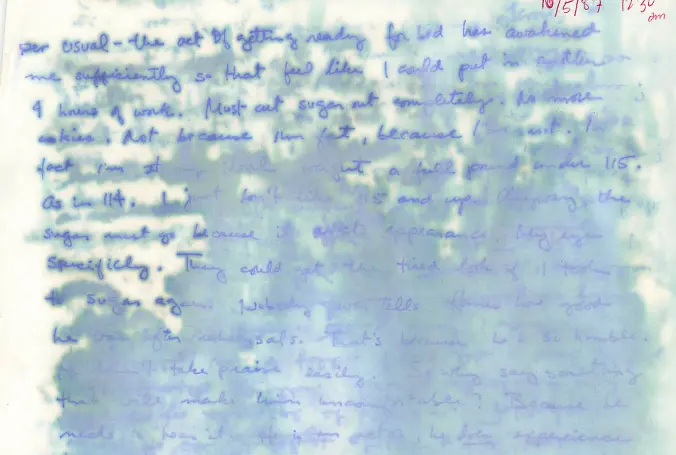
Water Damaged Pages
Moisture reduces contrast and adds texture noise, making letters blend into the background. Unblur Text restores clarity so content is easier to see.
- Improve legibility on stained paper
- Reduce background noise and texture
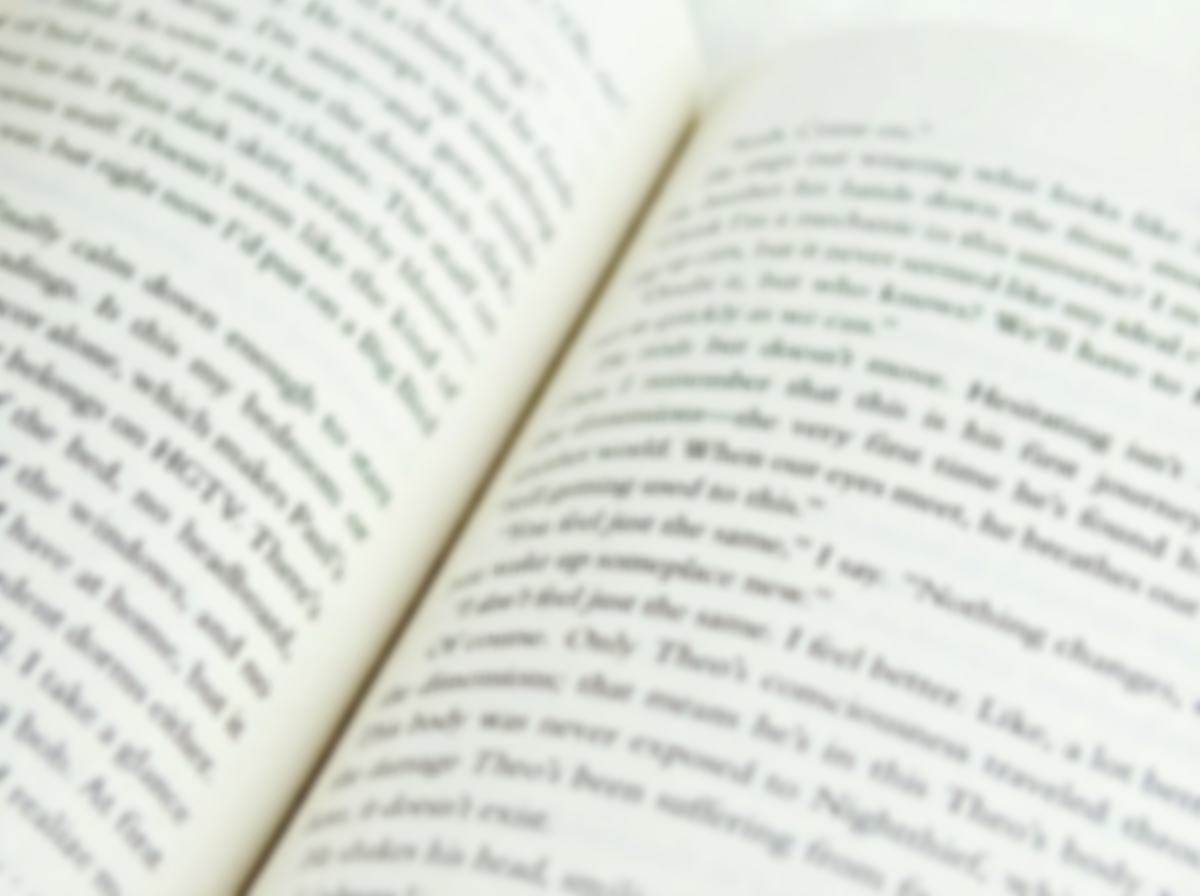
Out-of-Focus Photos
Camera shake and missed focus can soften letter edges. Unblur Text sharpens the image so the text becomes easier to read and process.
- Sharpen soft edges from blur
- Improve readability for OCR
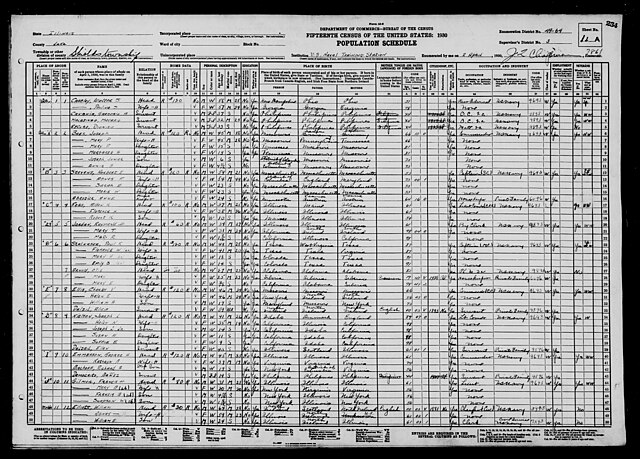
Old, Faded Documents
Aging paper and faded ink make scanned documents look washed out. Unblur Text boosts clarity while preserving the original content.
- Increase contrast for faint text
- Restore readability without over-darkening
How it works
Unblur damaged text in three steps
Upload a blurry image, restore clarity, and download the enhanced result in minutes.
Try it now01
Upload
Add a blurry, faded, or damaged image that needs a clearer text layer.
02
Process
Run the enhancement workflow to improve sharpness, contrast, and readability.
03
Download
Download the restored image and use it directly or pass it into OCR next.
Testimonials
What our users say

I usually take notes by hand in class, but rewriting everything on my laptop takes a lot of time. I tried uploading photos of my notes, and it actually worked better than I expected. It's really helpful when I need everything in text before exams.

Emily Carter
University Student

I deal with a lot of handwritten work from students. Converting it into text makes things easier to organize and review. I like that I can just upload a photo and get something readable without extra steps.

A lot of my research notes are handwritten or scanned. This tool helps me turn them into text so I can search and reuse them later. It saves time, especially when working with older documents.

I like drafting ideas on paper, but editing on a screen. Being able to turn my handwritten notes into text makes that transition much easier. It feels like a natural part of my writing process now.
I often take handwritten notes during meetings. Having them converted into text helps me keep everything organized and easy to reference later. It's simple and useful.
Blog
From the Blog
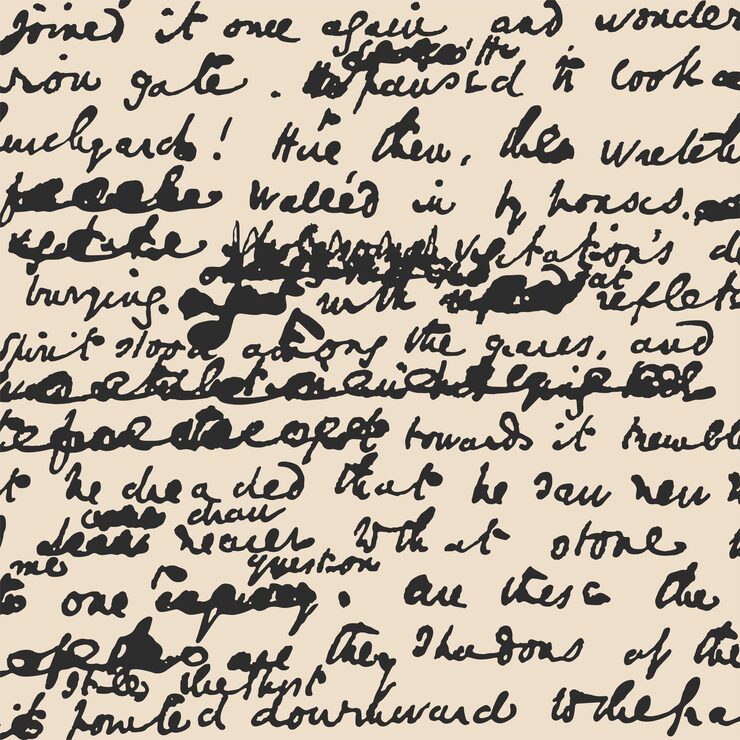
How to Read Bad Handwriting
Bad handwriting can be a frustrating barrier to information. Learn how to convert bad handwriting to editable text with AI.
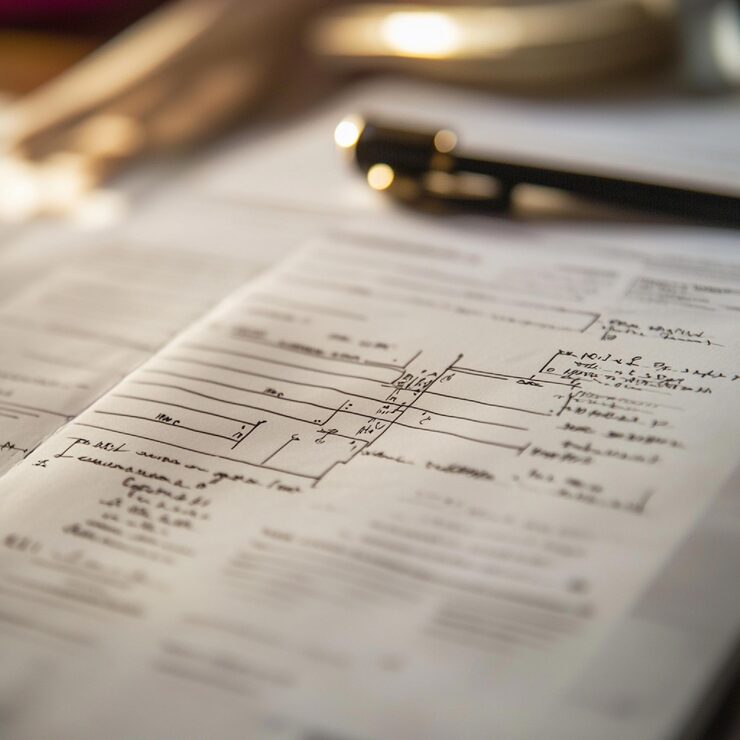
How to Remove Handwriting from a Scanned Document
Learn how to remove handwriting from scanned PDFs and images with AI. This article provides a step-by-step guide to using our Remove Handwriting tool.
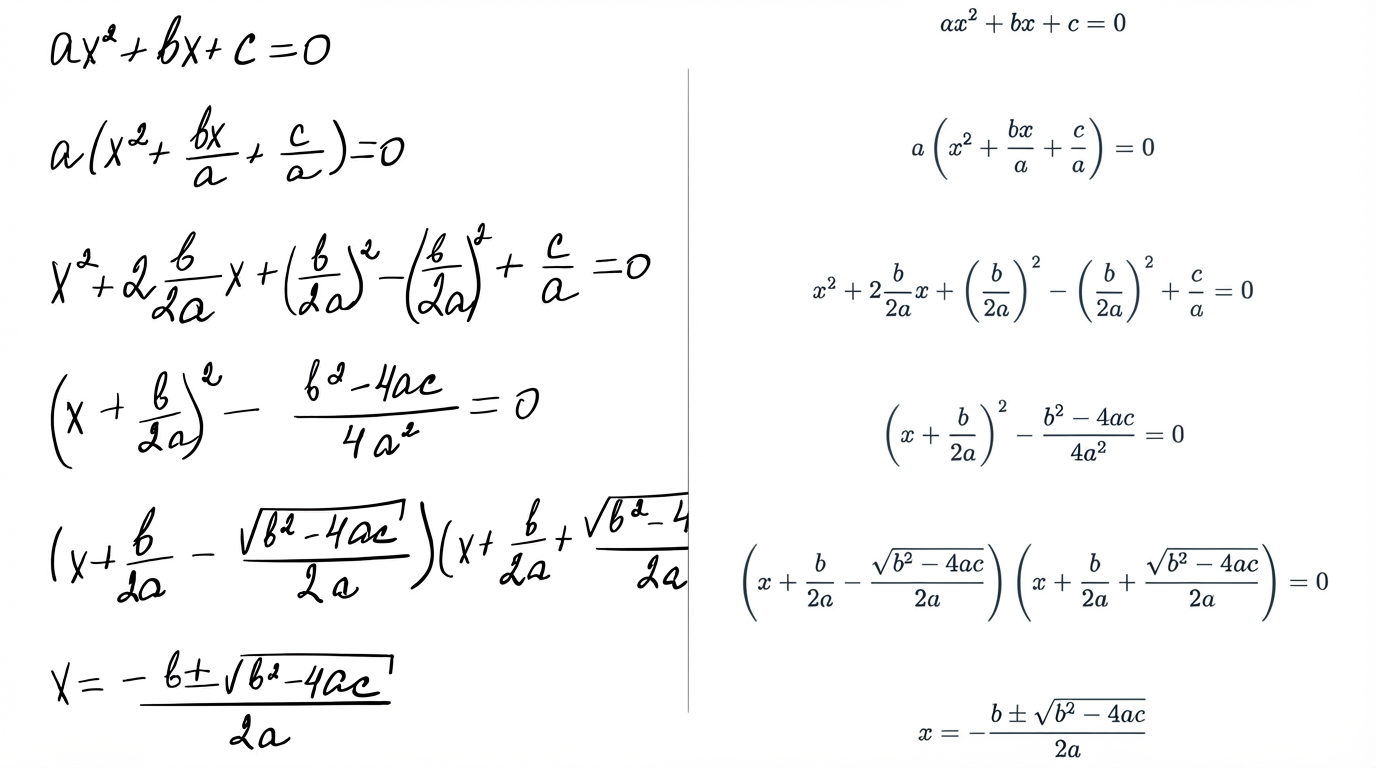
How to Convert Handwritten Math Notes to Editable Text
Convert handwritten math notes into editable text. Step-by-step guide plus tips to improve OCR accuracy for equations.
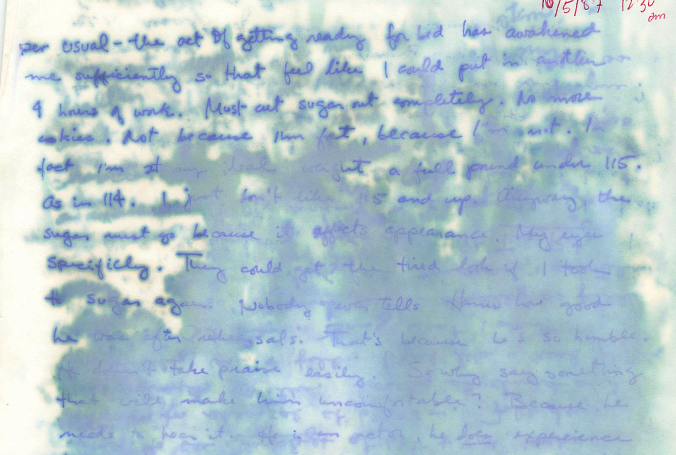
Handwriting OCR on Water-Damaged Documents: A Comparative Study
We compare handwriting OCR results on a real water-damaged handwritten journal excerpt to show how different systems handle faint, blurred, or partially missing text.
Frequently Asked Questions
Unblur Text is an AI-powered tool that restores clarity in blurry or damaged document images. It enhances readability by sharpening text edges and reducing visual noise, producing a cleaner image that you can download or use for OCR.
No. The goal is to improve image clarity without changing what the text says. The output is a restored image, not a rewritten document.
Use it when your uploaded page is hard to read due to blur, fading, water damage, low contrast, or heavy paper texture. Restoring the image first can improve handwriting to text accuracy.
It can significantly improve many low-quality images, but extremely severe blur, missing sections, or heavy obstructions may limit results. Try a clearer photo or rescan if possible for best outcomes.
You can upload JPG, PNG, WebP, and HEIC images up to 10 MB. For best results, use a well-lit image with minimal glare and the full page in frame.
Yes. Uploaded images are encrypted during processing and automatically deleted after restoration. We do not store your documents or use them for training purposes.
Yes. Unblur Text runs directly in your browser and works on mobile, tablet, and desktop - no installation required.
Unblur Text outputs an improved image. Handwriting to Text extracts editable text from an image. Many users restore the image first, then run OCR for better results.
Unblur Text
Restore clarity before OCR
Clean up blurry scans, then run OCR with better results.