
Image to Table Converter
Upload a photo, screenshot, scan, JPG, PNG, or WebP file. Turn visible table data into clean rows and columns you can review, copy, or export.
Convert image tables into editable spreadsheet data
Use this image to table converter to extract tables from photos, screenshots, scans, JPGs, PNGs, and WebP files. It helps turn visible rows and columns into structured data you can review, copy, or export.
Highlights
- Works with photos, screenshots, scanned images, JPGs, PNGs, WebP files, and table images captured from documents or apps.
- Designed to preserve table structure, including headers, rows, columns, and cell values, instead of returning loose OCR text.
- Simple workflow: upload an image, review the extracted table, then copy the result or export it to Excel or CSV.
Extract tables from images
Upload a photo, screenshot, or scanned image that contains a table and convert it into editable rows, columns, headers, and values.
Export to Excel or CSV
Review the extracted table, then export the result as an Excel file or CSV for use in Excel, Google Sheets, Numbers, Airtable, or your own data tools.
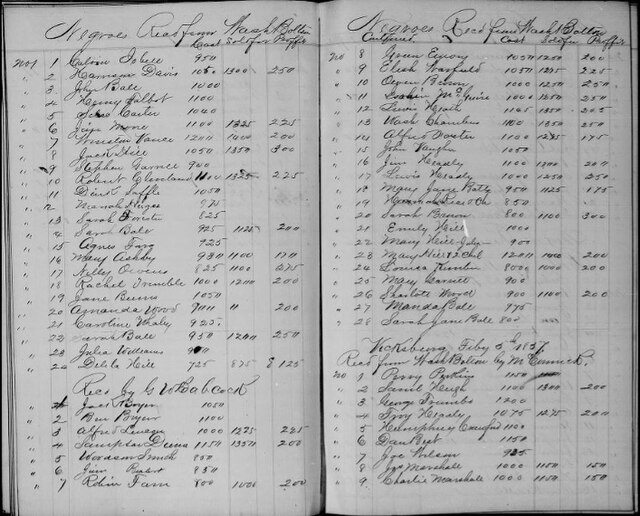
Work with handwritten tables
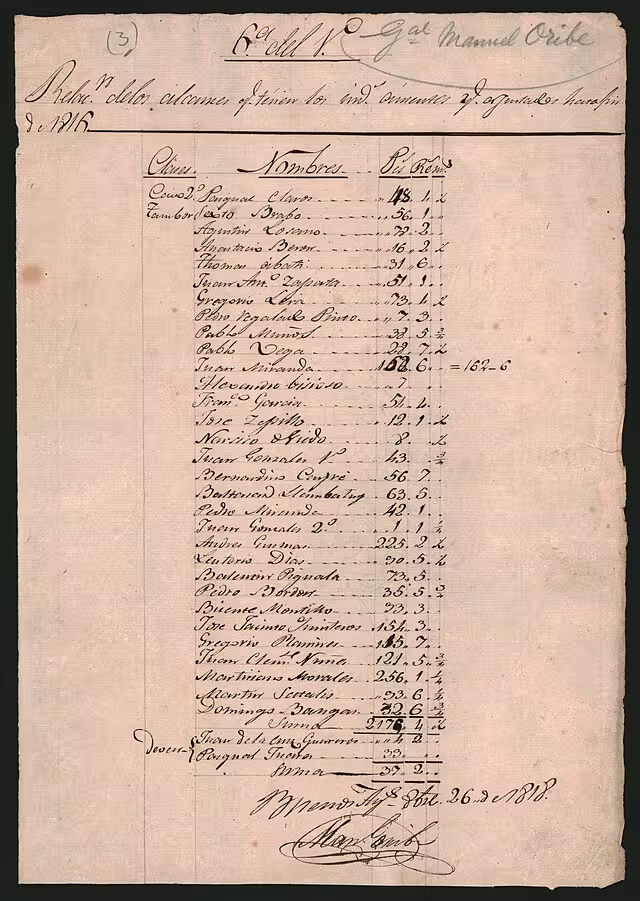
Use it with printed tables, notebook tables, photographed forms, whiteboard tables, scanned sheets, and handwritten table images.
Features
Built for Photos, Screenshots, and Scanned Tables
Extract Rows and Columns from Images
Our AI reads table structure inside images and organizes the result into editable rows, columns, headers, and values. Use it for screenshots, photos, scanned pages, and table images.
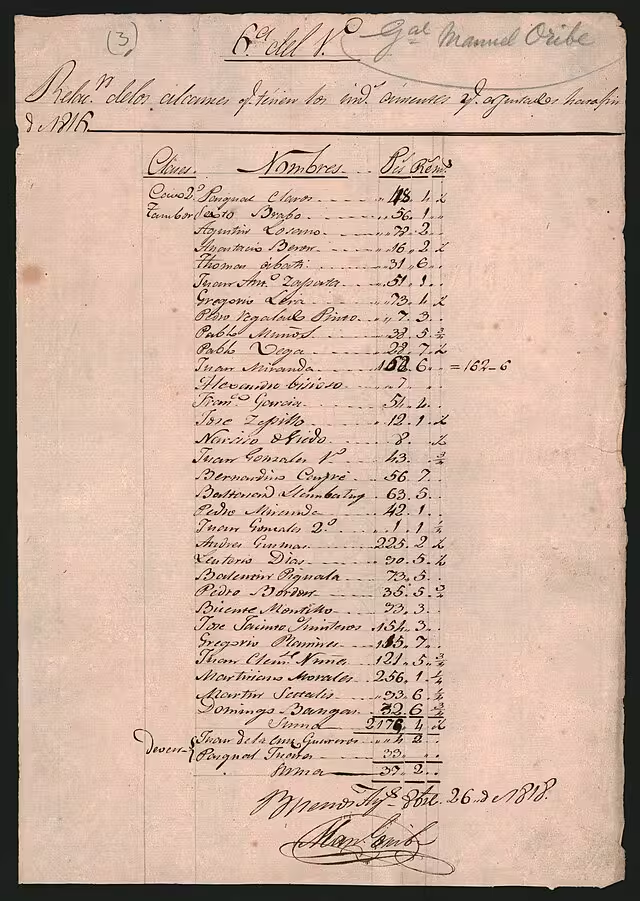
Handle Skewed Photos and Scans
Convert table photos with shadows, tilted pages, faint borders, or uneven spacing into clean table data. The tool helps preserve structure even when the image is not perfectly captured.
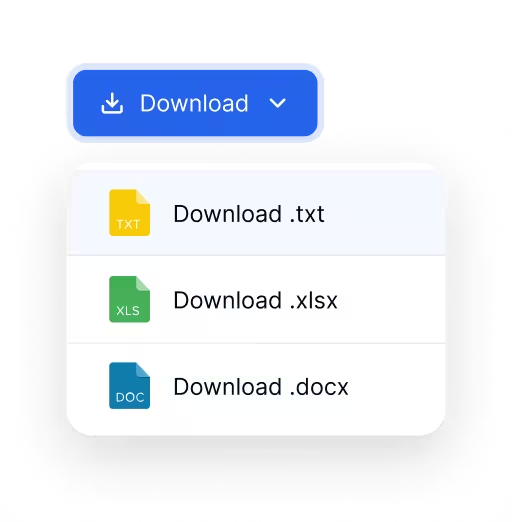
Export Image Tables to Excel or CSV
Review the extracted table, then download it as an Excel file or CSV. You can open the result in Excel, Google Sheets, Numbers, Airtable, or other spreadsheet tools.
How it works
Convert an Image into a Table in 3 Steps
Go from a table image to editable spreadsheet data without retyping every cell.
Try it for free01
Upload
Upload a JPG, PNG, WebP, screenshot, scan, or photo that contains a visible table.
02
Extract
Select the table extraction tool and let the AI detect headers, rows, columns, and cell values from the image.
03
Review and export
Check the extracted table, make edits if needed, then export it as Excel or CSV for your next workflow.
Use Cases
Turn Image Tables into Editable Data
Extract table data from photos, screenshots, scans, and image files for spreadsheet

Screenshots
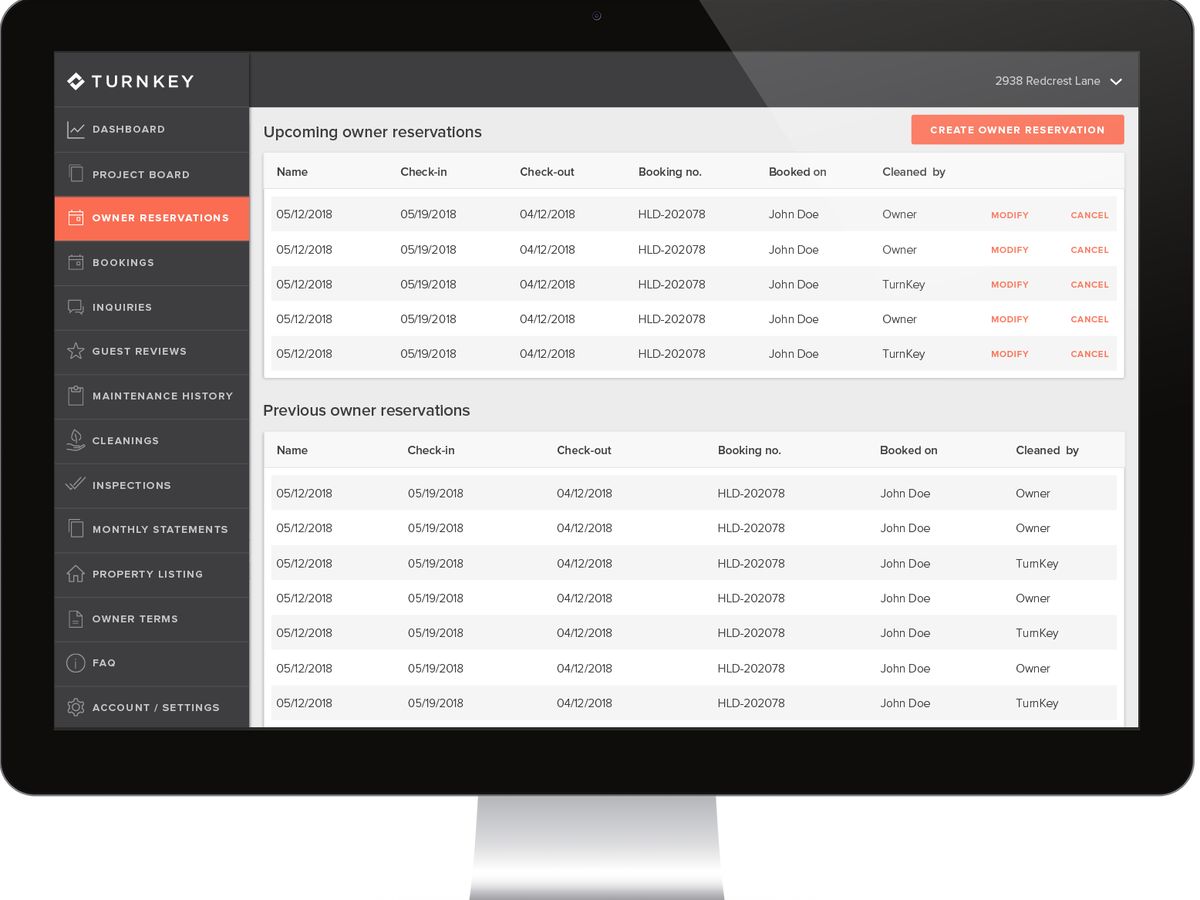
Convert table screenshots from apps, dashboards, reports, and websites into editable rows and columns you can copy.

Phone Photos
Extract table data from photos of notebook pages, printed sheets, and paper records captured with your phone.
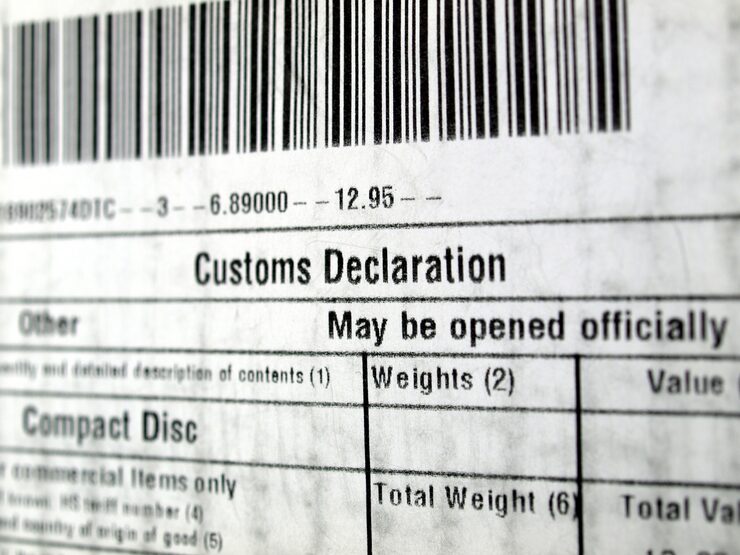
Scanned Tables
Turn scanned table images into structured data while keeping headers, rows, and values connected for review.
Convert by format or output
Image to Spreadsheet Converters
Choose a focused converter for Excel output or for the image format you already have.


Blog
From the Blog

How to Convert a Table Image to Excel
Learn how to convert a table image, screenshot, scan, JPG, or PNG into an editable Excel or CSV spreadsheet while preserving rows and columns.

How to Extract Handwritten Text from an Image
Upload a photo or scan and extract handwritten text in seconds. Step-by-step guide plus tips to improve OCR accuracy for messy notes and cursive.
How to Convert Handwritten Tables to Excel
Learn how to convert handwritten tables, notes, forms, and records into editable Excel or CSV spreadsheets with AI table extraction.
How to Extract Tables from a Scanned PDF
Learn how to extract tables from a scanned or image-based PDF and export the rows and columns to an editable Excel or CSV file.
Frequently asked questions
You can upload common image formats such as JPG, PNG, WebP, and screenshots. Clear, high resolution images usually give better extraction results.
Yes. You can upload a photo taken with your phone. Try to keep the page flat, include the whole table, and avoid strong shadows or glare.
Yes. The tool can read table screenshots from apps, websites, dashboards, reports, and documents, then convert them into editable rows and columns.
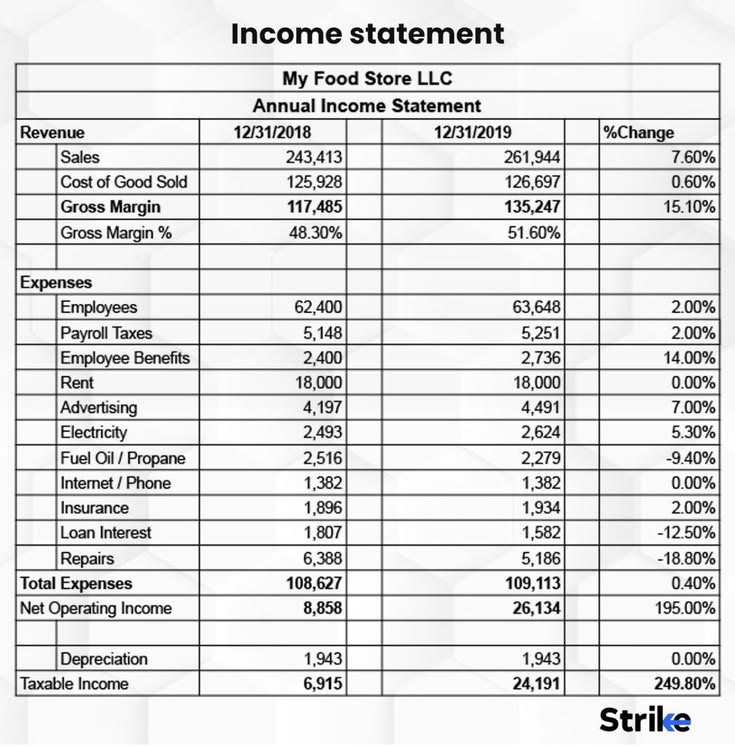
Yes. It can extract table data from scanned pages and image based documents. Faint borders, low contrast, or blurry scans may need manual review after extraction.
Yes. It can process handwritten table photos and scans, including notebook tables, handwritten forms, and paper records with visible rows and columns.
You can export the extracted table as an Excel .xlsx file or CSV file, depending on how you want to use the data.
Use a clear image, keep the table fully visible, crop out unrelated content, avoid heavy shadows, and make sure headers and values are readable.
Image to Table
Extract Editable Tables from Images
Upload a photo, screenshot, scan, or image file and turn visible table data into rows and columns you can export.